Need help with anything in this article or have other questions? Contact us at support@noticiasolutions.com
To activate Noticia Go, perform the following steps:
- From the Portal Home, navigate to UI Extensions
- Click Noticia Go AI
- In the sidebar, click Cases and activate the applicable case(s)
- Navigate to the case(s) and perform the following
- Click Features in the Case Setup menu and scroll to the bottom
- Activate Noticia Go for applicable groups
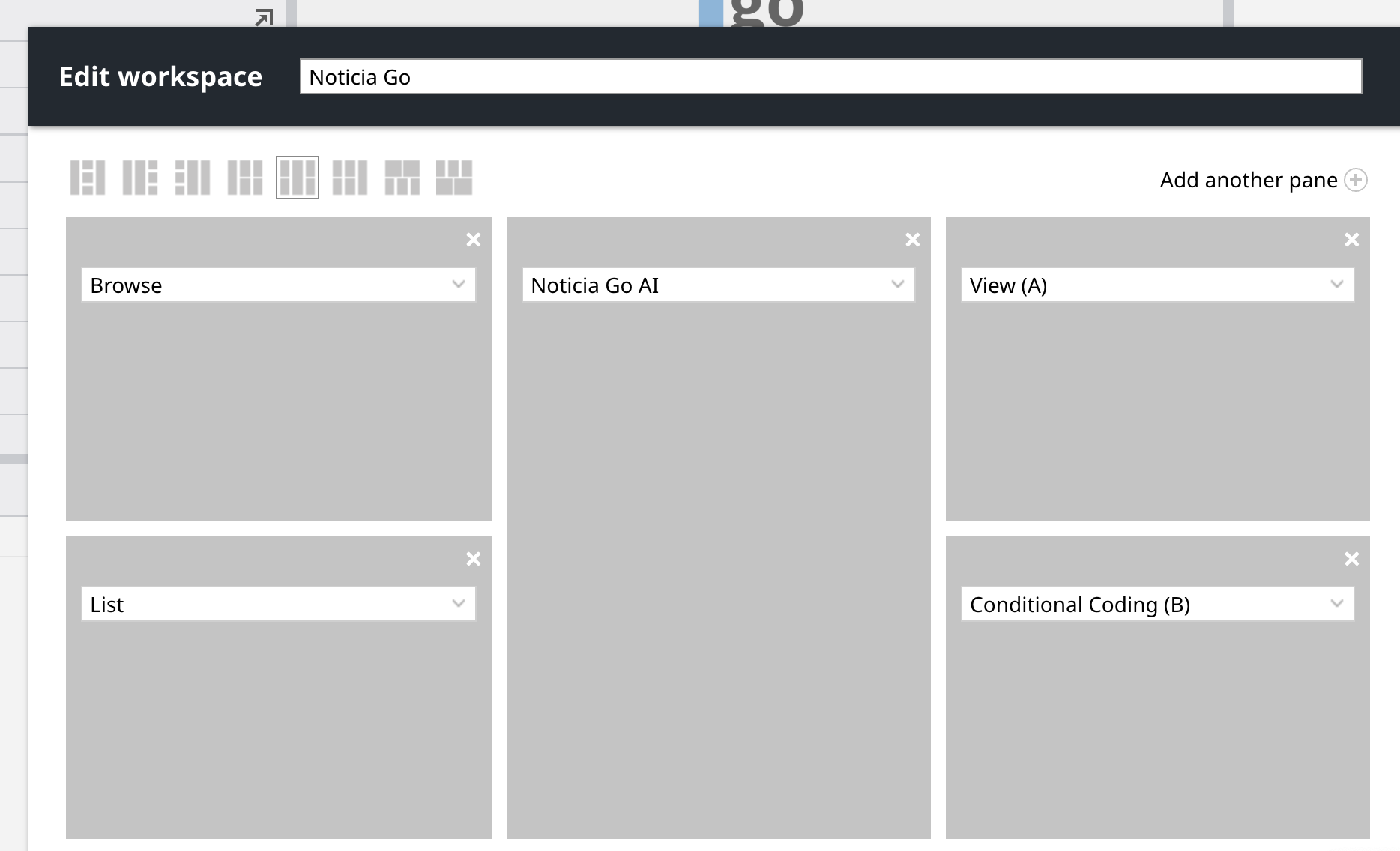
- Create a Workspace Layout like this:
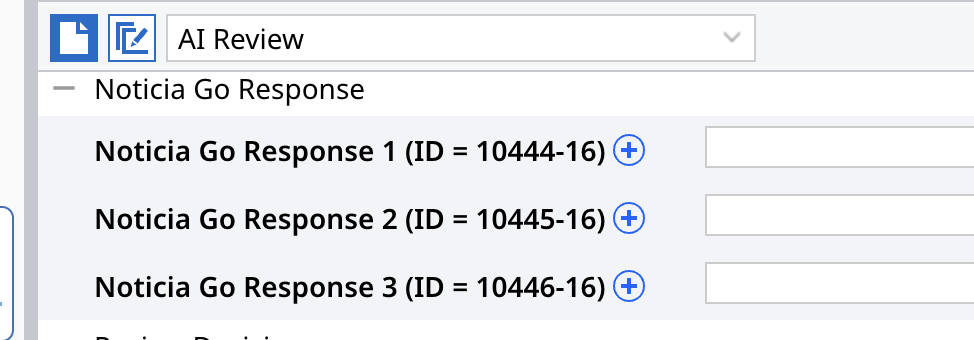
- Create a three fields (if not already created) and add them to a conditional coding pane like this:
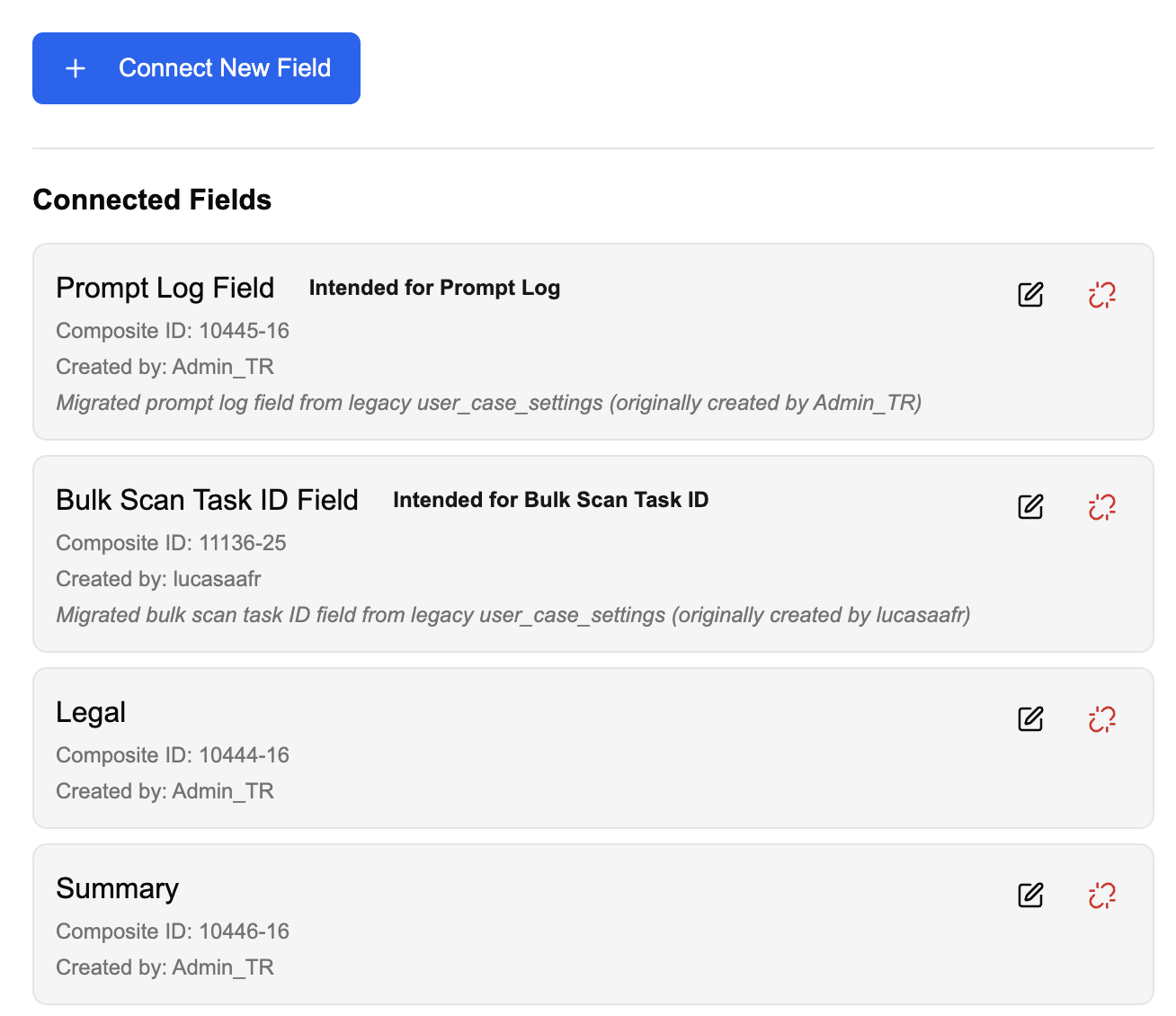
- Connect the fields in Noticia Go. Connected fields are shared to all the users in a case.
- Notify the client and provide training if necessary
If the fields are not yet created:
- Create a new memo field, one to many
- At the end of the name, add (ID = #####-##)
- To find the ID, open developer tools in chrome (settings, more tools, developer tools)
- Select the Network tab
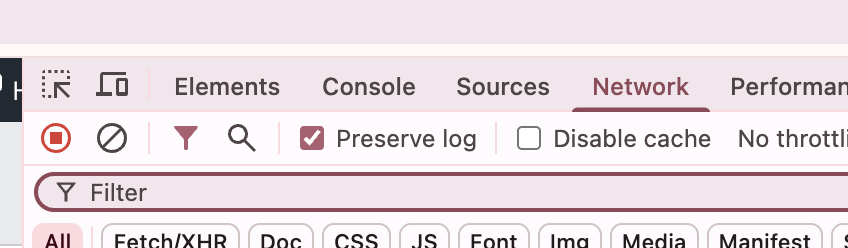
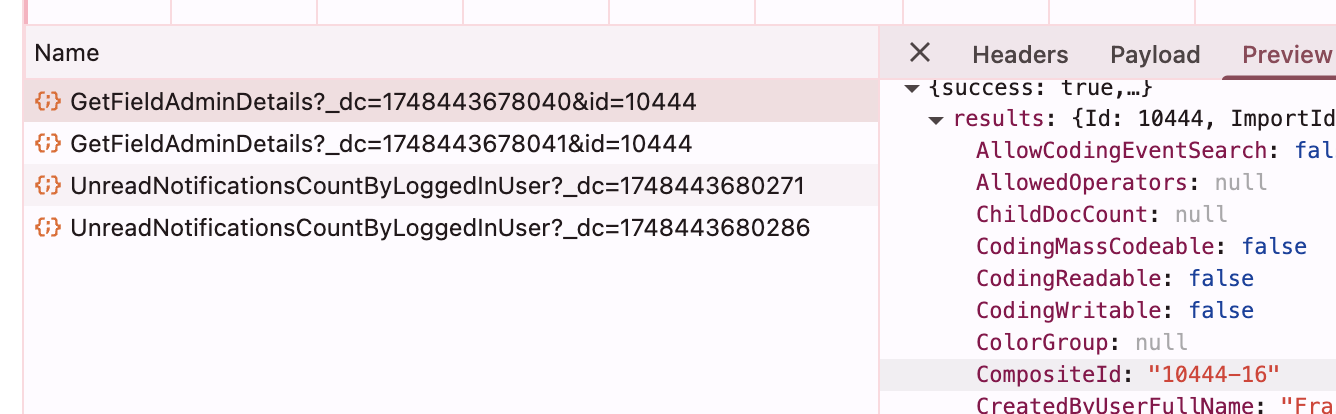
- Click on your field in the settings menu and you will see the new entry.
- Find the composite ID and paste each in the "Composite ID" text field when connecting a new field in Noticia Go settings.
- Give each field a helpful label for ease of use and add notes if needed.
- We also recommend adding the composite ID to the name of each Nuix field in the Case Setup section for ease of future recall.
Securities:
Enable Noticia Go Fields and Conditional Template to appropriate user groups.
Please note each user must set up the fields for themselves inside Noticia Go.
Was this article helpful?
That’s Great!
Thank you for your feedback
Sorry! We couldn't be helpful
Thank you for your feedback
Feedback sent
We appreciate your effort and will try to fix the article