Need help with anything in this article or have other questions? Contact us at support@noticiasolutions.com
Adding Source to a document
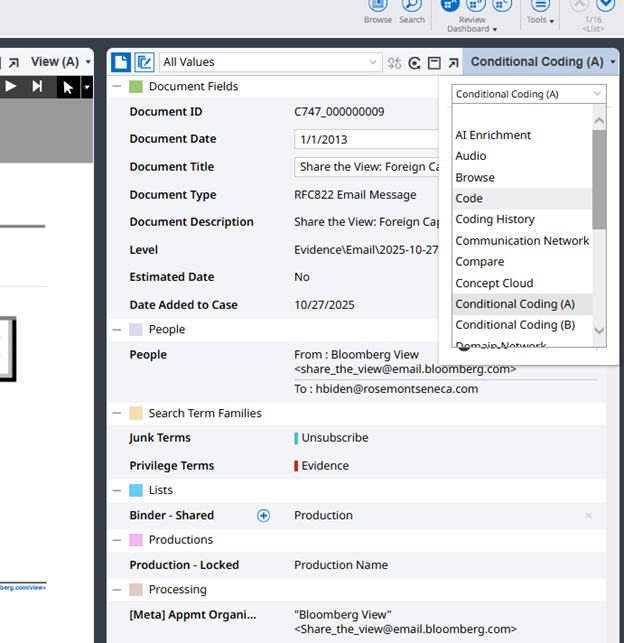
From the conditional coding pane, select the top left drop down and change to the Code pane
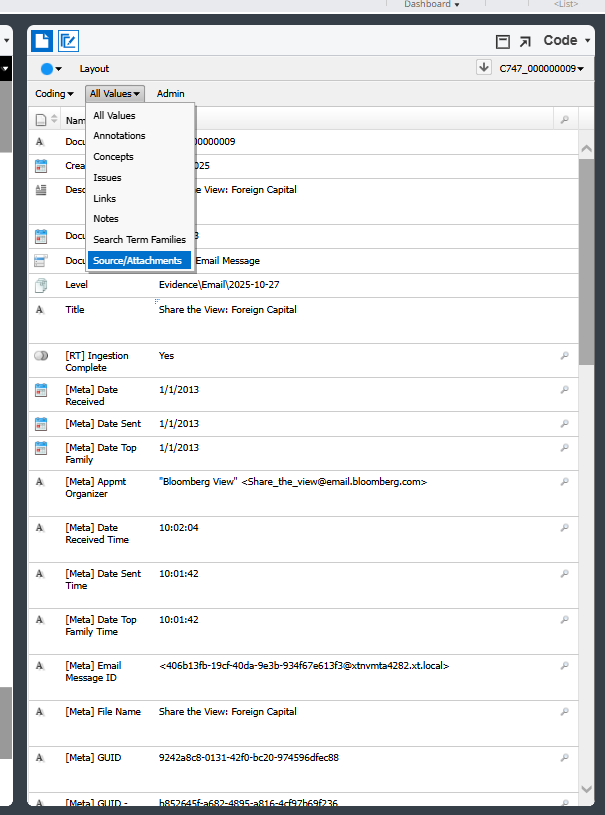
One the Code pane, change all Values to Source/Attachments
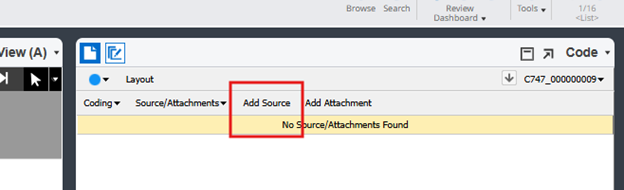
Select Add Source
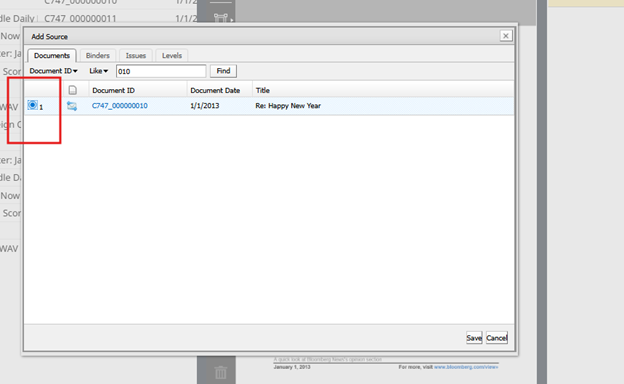
Search for the ID of the source document
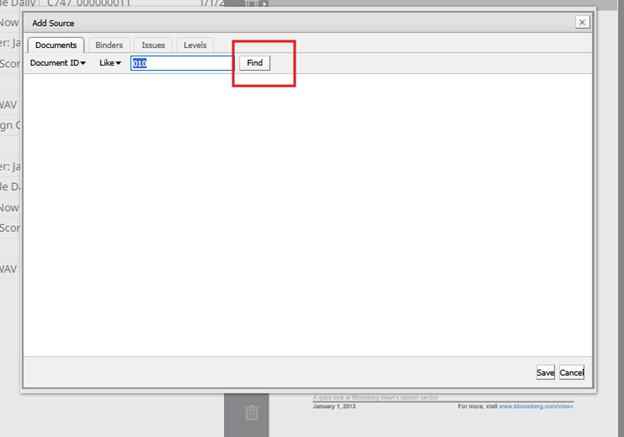
Select the correct result
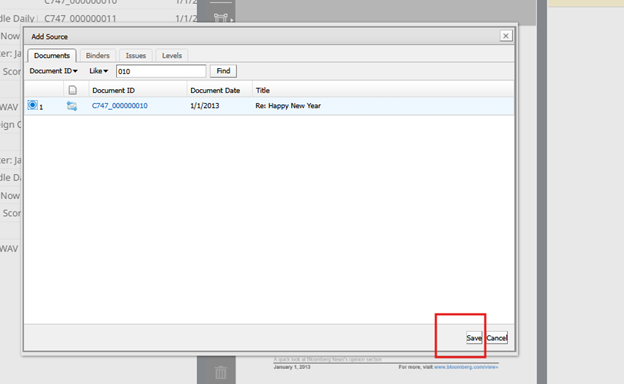
Save
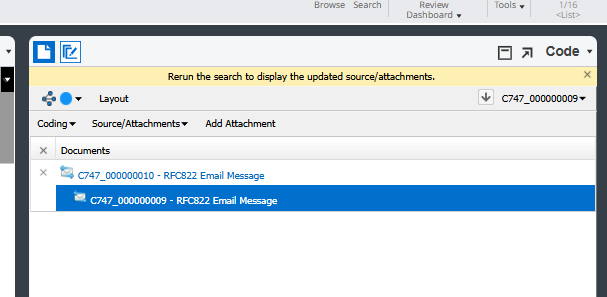
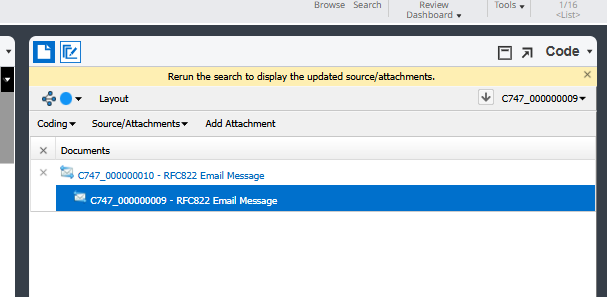
Relationship will appear in the Code pane, however to see the results in your list view rerun your Search
Adding Attachments to a Document
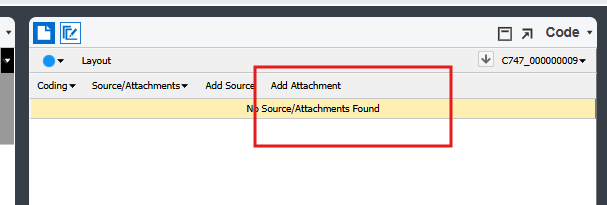
Follow the same steps as Adding a Source, however select Add attachment on the Code Pane instead of add Source. All other steps remain the same
Removing Source and Attachment Relationship
To remove a newly created relationship, simply select the X beside the family. Important to note, this will remove all relationships within the family
Was this article helpful?
That’s Great!
Thank you for your feedback
Sorry! We couldn't be helpful
Thank you for your feedback
Feedback sent
We appreciate your effort and will try to fix the article