Need help with anything in this article or have other questions? Contact us at support@noticiasolutions.com
Article: How to Download an ATI/FOI Production
From the Case Home Page
- Select the Production you wish to download
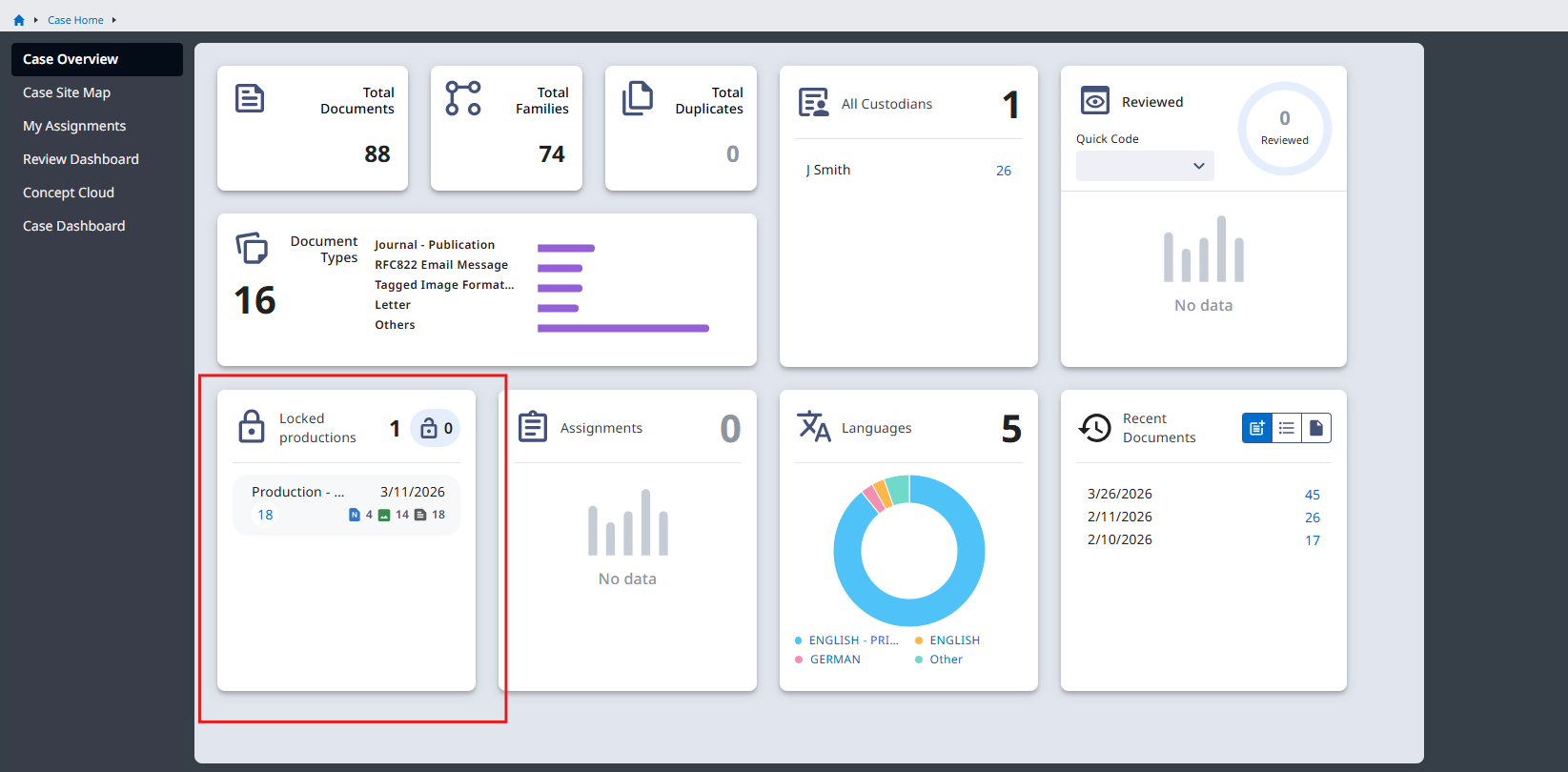
From the Documents Page
- Select all documents in the list pane again.
- Tools --> Batch Print.
- Ensure that Insert Placeholder is selected for non PDF or Image documents
- Ensure that print as one big PDF is selected**
**If the total number of pages, for the whole set exceeds 500 pages, Nuix will split the material into multiple parts. It will not split documents however.
- Select
- Do not close the popup window or your print will be canceled.
- The PDF will be saved in your download location
- From the List pane select the native renditions copy and download one at a time, from the Document Viewer

- If you have a large amount of native material, you can Export the documents instead of downloading individually.
- How to Export Document with NO Load File can be found: HERE **
**When exporting native produced documents, make sure you are working with production renditions and not base documents. This can be confirmed by checking Document ID.
Was this article helpful?
That’s Great!
Thank you for your feedback
Sorry! We couldn't be helpful
Thank you for your feedback
Feedback sent
We appreciate your effort and will try to fix the article